
improved
Lesson Editor
We've completely rewritten our lesson editor from the ground up. Our goal was to provide a cleaner and more efficient experience for our content creators with more useful content types for instructional content.
Appearance
We've removed the fixed toolbars in favor of floating toolbars and right-click menus. This will reduce scrolling and allow creators to use their keyboard.
Quick Insert
Creators can use the backslash
/
key to show a menu of available content types to insert.
Content Types
There are many types of content that you can insert into lessons, from bullet points to images.
Here's a full list of content types, split into the same categories you'll find in our block menu (which can be opened with
/
).Basic blocks
- Text: Just your regular old plain text!
- Heading 1: The largest heading, can be easily added with shortcut/h1.
- Heading 2: The medium-sized heading, can be easily added with shortcut/h2.
- Heading 3: The smallest heading, can be easily added with shortcut/h3.
- Table: Creates a simple set of columns and rows.
- Bulleted list: Bullets. Shortcut-+space.
- Numbered list: Indents your list and automatically generates the next number.
- Quote: Creates larger text to break quotes out from the rest of your document.
- Divider: Creates a thin gray line to break up text. Shortcut---+enter.
Media
There are several types of media you can add, view, and play (audio/video) right in a lesson.
- Image: Upload images or add images on your lesson.
- Video: Upload your own file or embed from YouTube, Vimeo, etc.
- Block Audio: Upload your own recording or embed from a website.
- File: Upload any sort of file to a lesson to store it exactly where you want it.
- Web Bookmark: Add a clickable link preview of a URL to your page.
Lesson specific blocks
- Quick Start: Give a short overview or summary.
- Notice: Point out something important.
- Info: Provide an explanation.
- Tip: Give a helpful tip.
- Mistake: Point out a common error.
- Learn More: Connect to further lessons.
- Examples: Show usage in context.
- Conversation: Show a dialog.
- Verb Conjugation: Show a verb conjugation table.
Inline-options
The content menu includes a few options that aren't technically blocks. Instead, they're
/
commands that will add several other types of content to your lesson:- Reveal: Give learners a chance to guess and check.
- Link to page: Creates a link to another lesson or vocabulary set. Shortcut@ Content Name
- Inline Audio: Insert a small audio player next to text.
- Emoji: Brings up the emoji picker. Shortcut:emoji name:
Style your Content
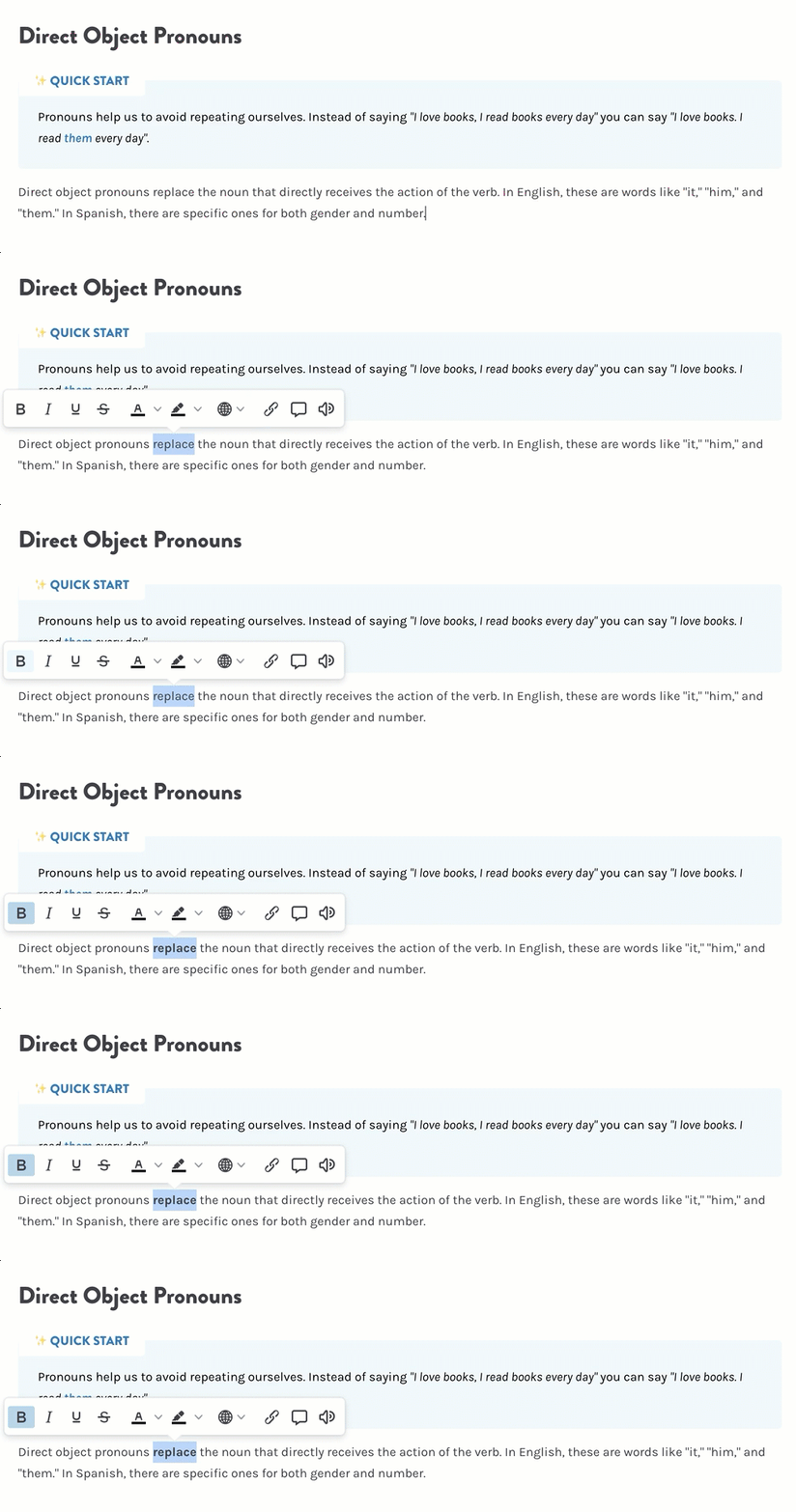
Lingco's lesson editor is equipped with all the text styling features you've come to expect from any word processor — with a few more added in. Highlight any text to see the editing menu:
Inline Formatting
There are also multiple options that can be applied
- Bold,Italics,Underline,Strikethrough
- Text ColorandBackground Color
- Language: Make text accessible to screen readers by setting the language of the text.
- Link
- Tooltip: Insert text to appear on hover.
- Audio: Insert an audio file to play when the learner clicks on the text.
Right-click Actions
- Transform: Convert block into another type of block (like a bullet into a checkbox, or some plain text into a heading).
- Translate: Switch between languages.
- Capitalization: Switch between UPPERCASE, Title Case, and lowercase
- Generate Audio: Create synthesized audio. List shows available voices and regions.
Markdown & shortcuts
Lingco supports many Markdown shortcuts along with traditional text editor shortcuts.
While typing:
- Type ** on either side of your text to bold. Keyboard: ctrl+b.
- Type * on either side of your text to italicize. Keyboard: ctrl+i.
- Type ~ on either side of your text to strikethrough.
At the beginning of any line of text, try these shortcuts:
- Type *,-, or+followed byspaceto create a bulleted list.
- Type 1.,a., ori.followed by space to create a numbered list.
- Type #followed byspaceto create an H1 heading.
- Type ##followed byspaceto create an H2 sub-heading.
- Type ###followed byspaceto create an H3 sub-heading.
- Type "followed byspaceto create a quote block.
Advanced Keyboard Shortcuts
- Source Code Editor: ctrl+shift+s
- Toggle Visual Blocks: ctrl+shift+v
- Exportable HTML & CSS: ctrl+shift+c
(
Ctrl
on Windows or Command
on Mac)